Windows 10: Mail (POP)
This article will assist you with setting up the native Mail app in Windows 10 with your Hosted Mailbox.
- Click on the Start Menu (or press the Windows key) and then search for Mail
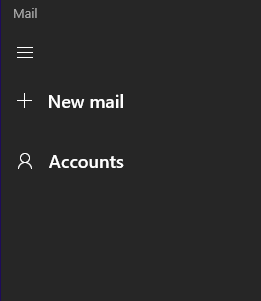
- When Mail opens, click on Accounts in the top left.
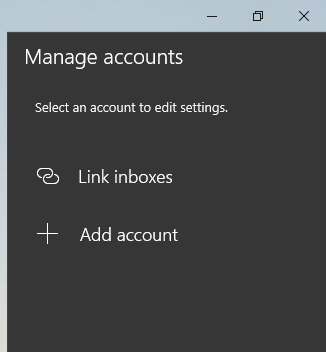
- Select Add account in the top right to add a mailbox.
- Select Advanced Setup and then Internet Email.
-
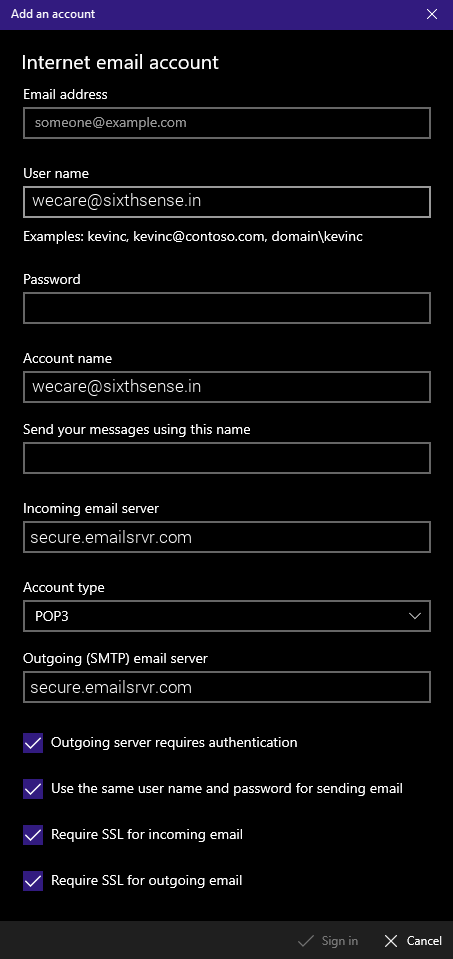
In the Internet email account window, input the following information before hitting Sign in:
Account Name: Whatever label you would like
User Name: wecare@sixthsense.in
Password: Your mailbox password
Account Type: IMAP4
Incoming email server: secure.emailsrvr.com
Outgoing(SMTP) email server: secure.emailsrvr.com
Send your messages using this name: Your Name
- Congratulations! You have now set up Mail to work with your Mailbox. Please wait 15 minutes before troubleshooting to allow for mail to download.