How would you like to connect to the mail server?
We strongly recommend IMAP, so all devices are in sync.
Windows: Outlook (IMAP)
This article will assist you with setting up Outlook with your Hosted Mailbox.
- Click on the Start Menu (or press the Windows key) and then search for Control Panel
- After opening Control Panel, in the upper right-hand corner change View by: to Small Icons
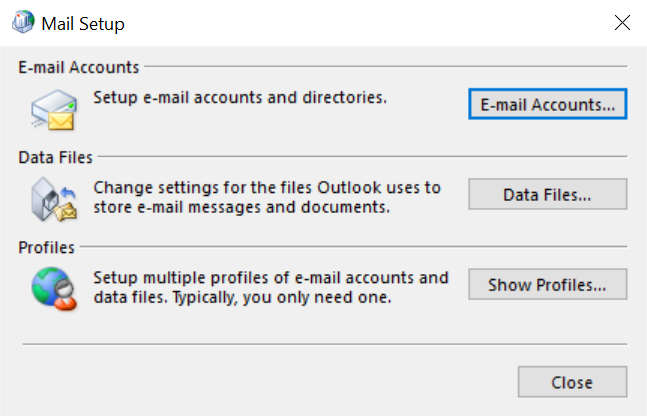
- Click on Mail
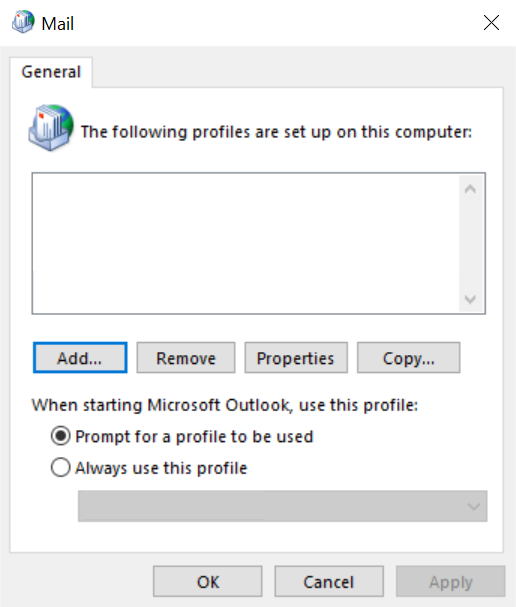
- When the Mail Control Panel opens, select Show Profiles
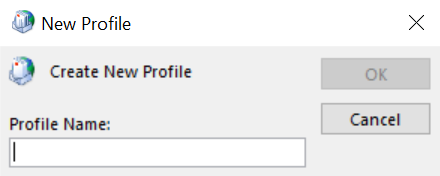
- Select Add to add a new profile. Enter any name you wish and select OK
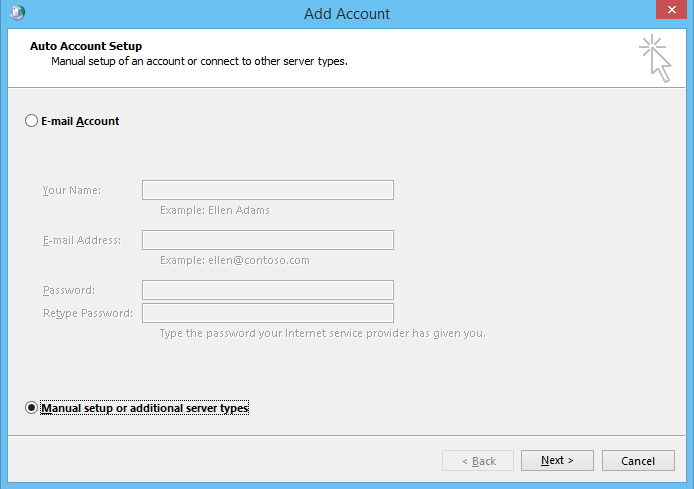
- Select Manual setup or additional server types. Click Next
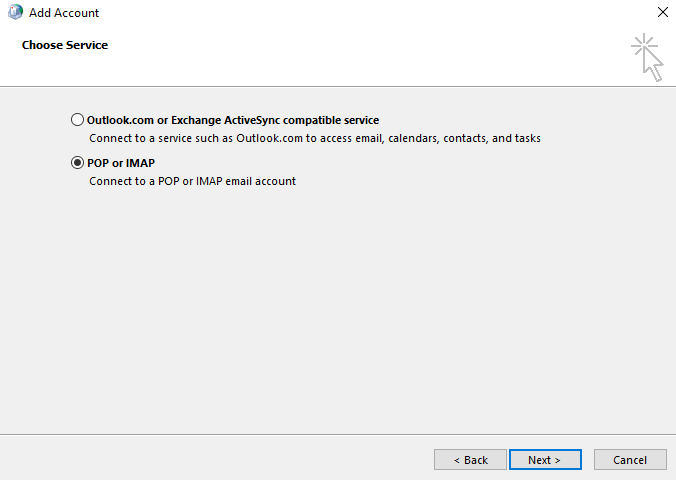
- Select POP or IMAP and click Next
-
In the Add New Account window, input the following information:
Your Name: Your Name
Email Address: wecare@sixthsense.in
Account Type: IMAP
Incoming Mail Server: secure.emailsrvr.com
Outgoing Mail Server: secure.emailsrvr.com
User Name: wecare@sixthsense.in
Password: Your mailbox password
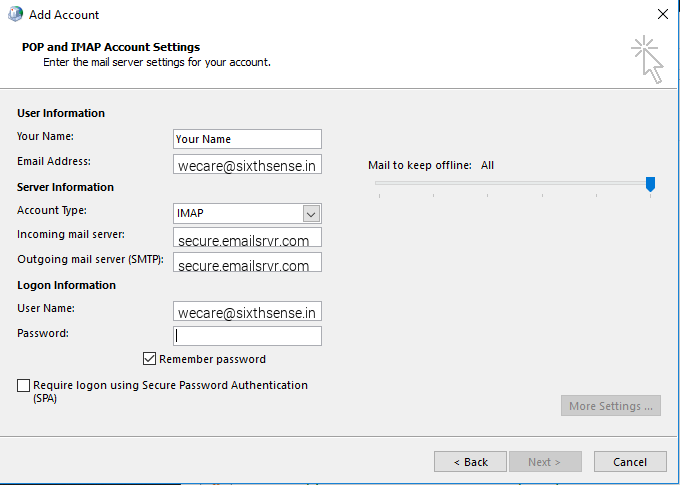
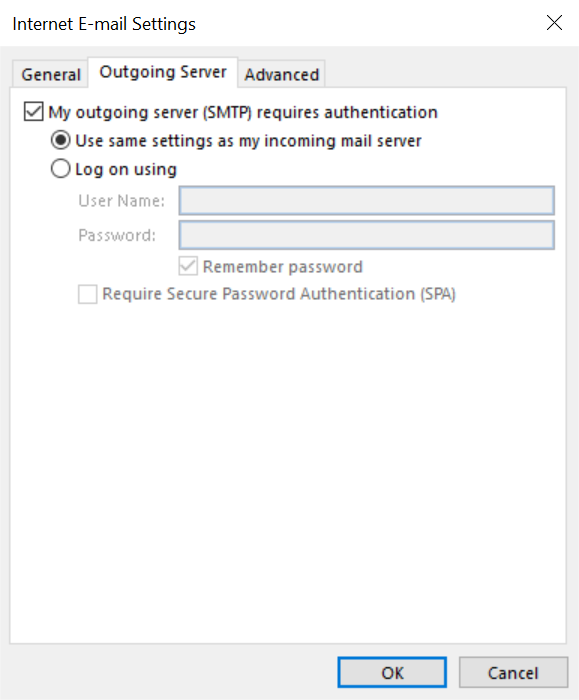
- Click on More Settings then click the Outgoing Server Tab
-
Check the box for My outgoing server (SMTP) requires authentication
Check the button for Use same settings as my incoming mail server
-
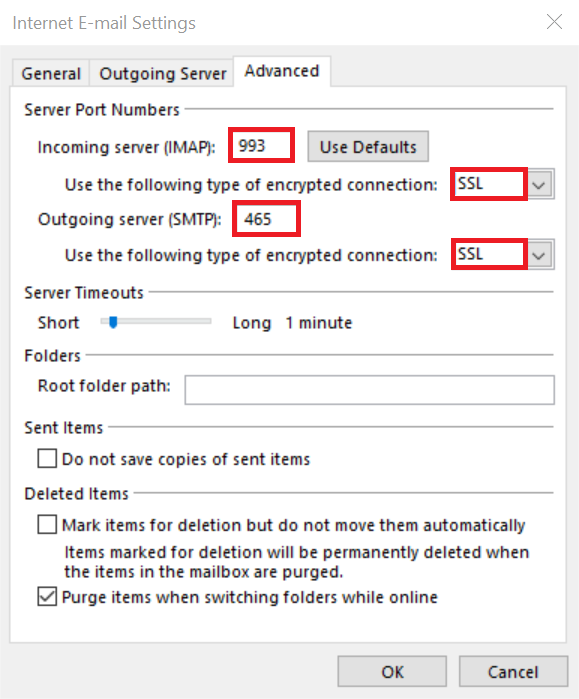
FIRST change Use the following type of encrypted connection to SSL for both the Incoming and Outgoing servers.
Next, change the port numbers to match the image below.
- Click OK
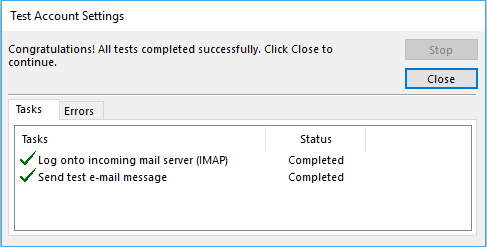
- Click Next. Outlook will now attempt to send a test message using the settings we have just put in. If everything was entered correctly, the message will send out successfully.
- Congratulations! You have now setup Outlook to work with your Mailbox. Please wait 15 minutes before troubleshooting to allow for mail to download.
Windows: Outlook 2010/2013/2016 (POP)
We strongly advice against setting up mailboxes as POP, as it is an outdated protocol. POP also does not sync emails back to the server (read/unread states, sent emails, deleted emails) and also deletes emails on the server after 14 days, if configured incorrectly. So if your hard drive crashes, we don't have a copy of the emails on the server; as the only copy is stored locally on your computer.
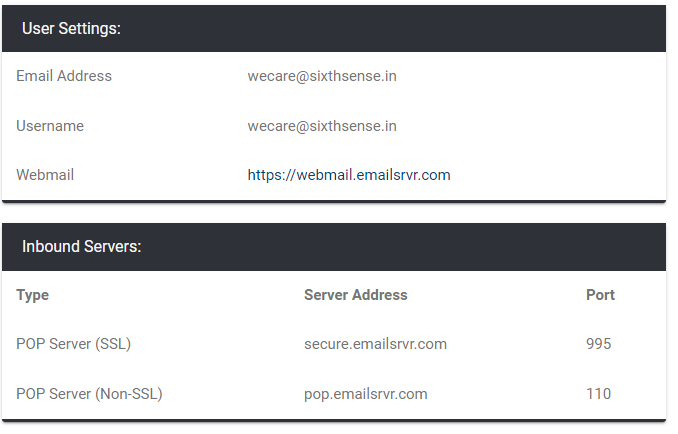
To setup as IMAP, go back a screen and select the IMAP setup instructuons. If you still want to setup POP, below are our server names and port numbers.
If the device you're trying to setup is requesting an outgoing or SMTP server, you should use the settings below. We strongly recommend using SMTP (SSL) whenever possible.
Please note: Our SMTP servers require authentication. Which means you need to enter username and password to send through our network. We do not allow unauthenticated open relays to send through our servers. If your device does not support SMTP Authentication, you will not be able to use our settings. Please consult with the device manufacturer on wether your device supports SMTP authentication.
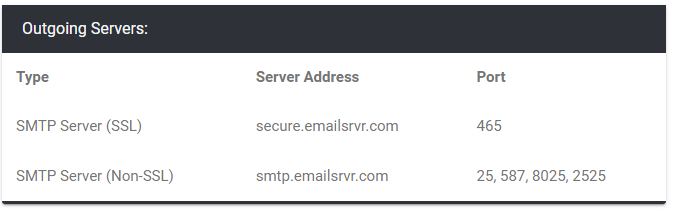
*For non-SSL SMTP, you can use any of the ports listed. Some networks block port 25, which is why we provide the alternate ports.