Android: Generic IMAP Setup with Gmail App
This article will assist you with setting up Outlook with your Hosted Mailbox.
- Launch the Settings app on your device.
- Once it launches, tap on Accounts.
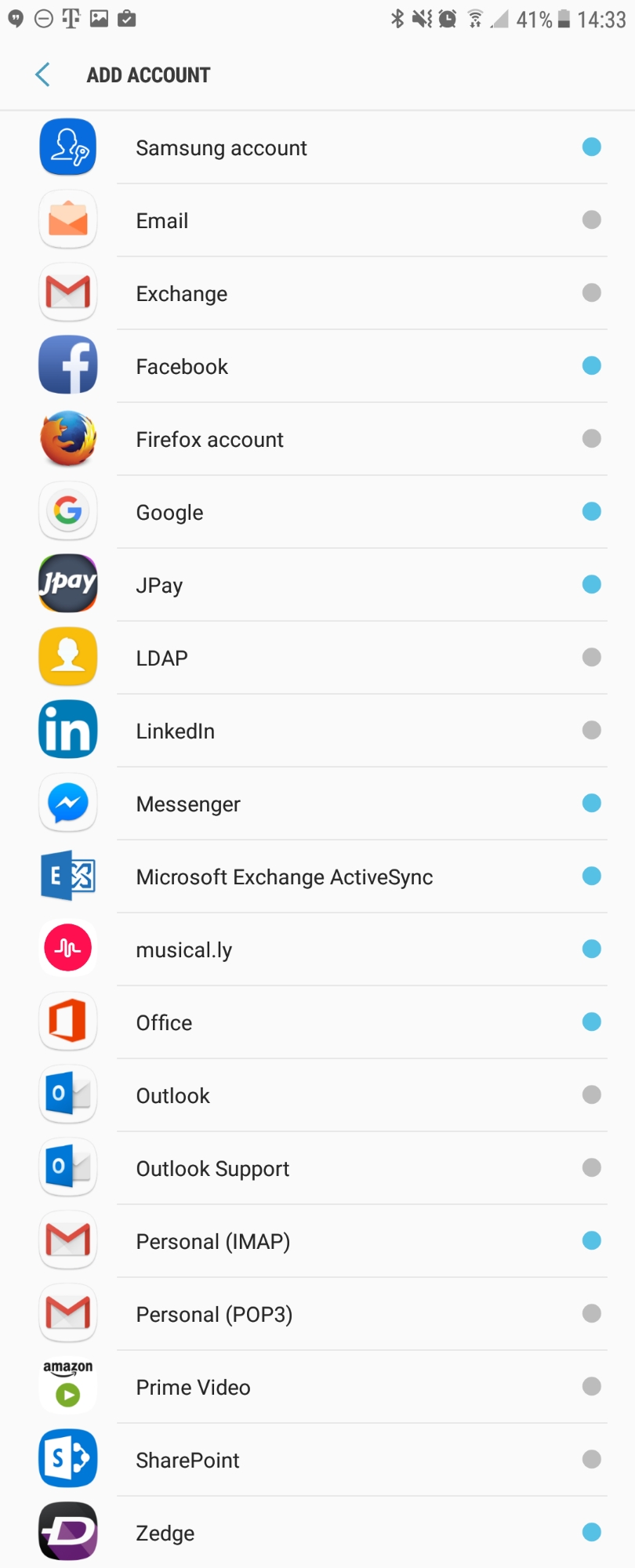
- Tap on Add Account.
- Select Personal (IMAP), near the bottom of the screen, as the Account Type
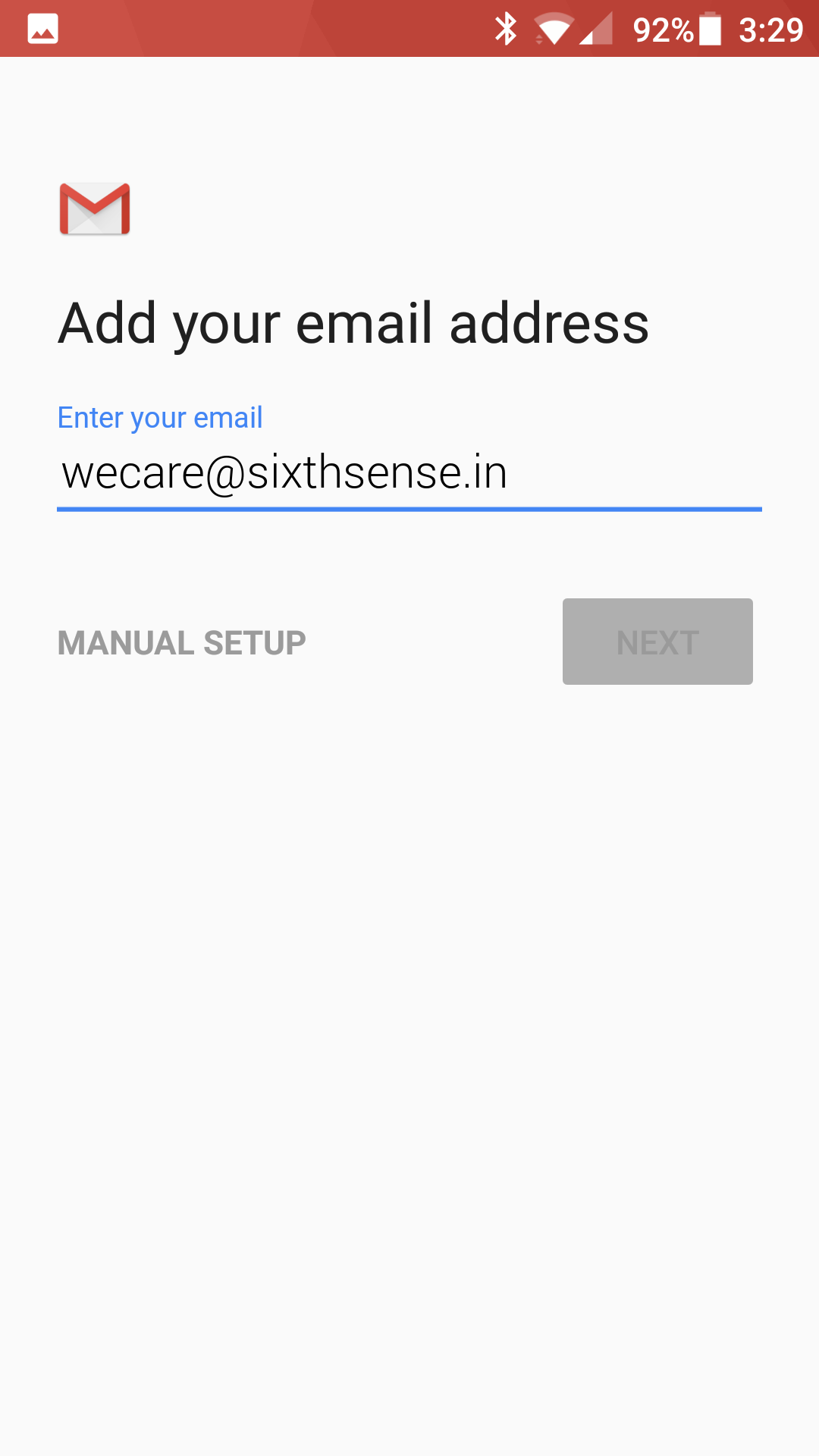
- Enter your email address: wecare@sixthsense.in
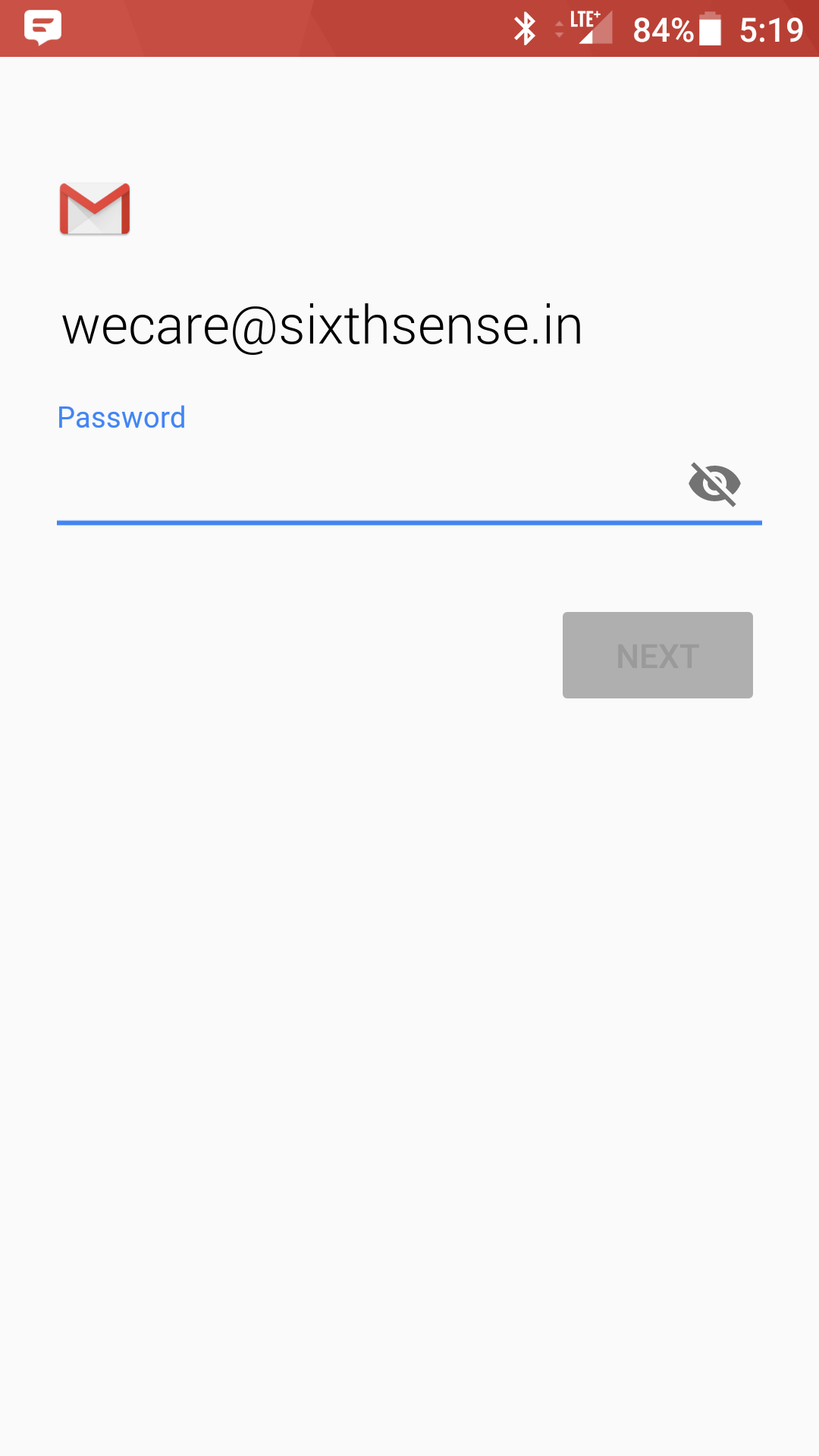
- Type your mailbox password
-
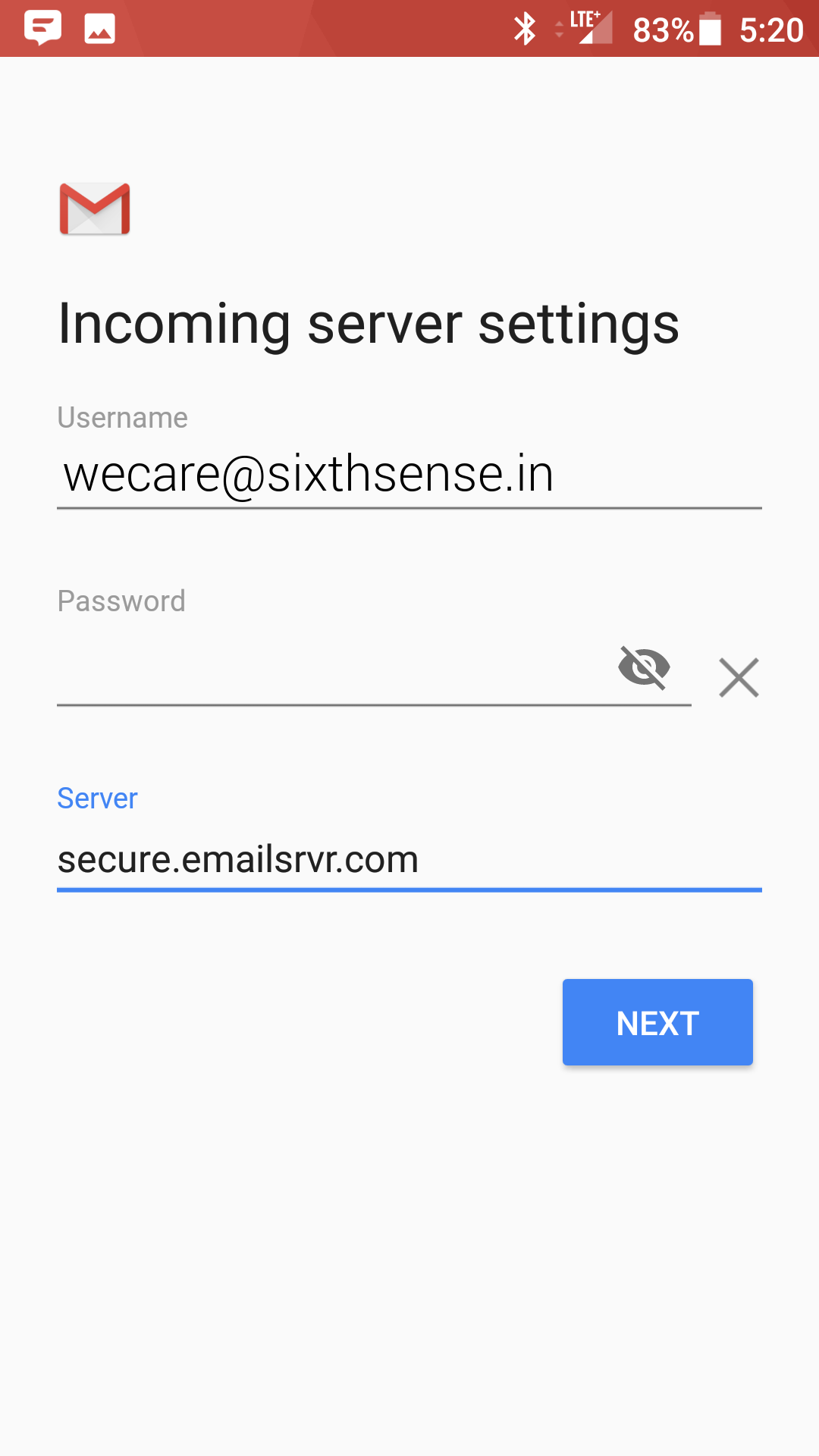
Enter the following incoming settings:
Username: wecare@sixthsense.in
Password: Your mailbox password
Server: secure.emailsrvr.com
- Tap Next
-
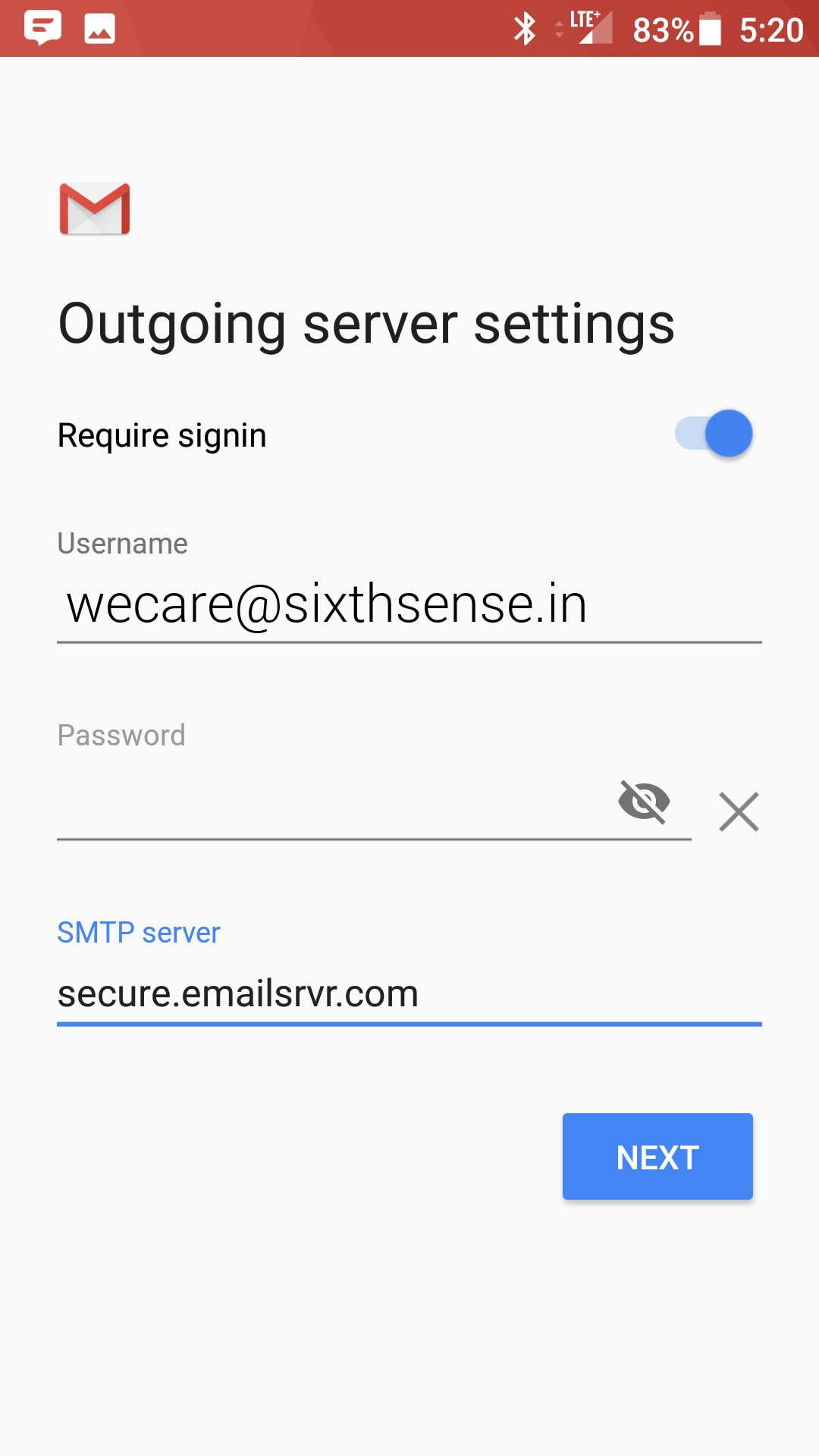
Enter the following outgoing settings:
Make sure Require signin is enabled.
Username: wecare@sixthsense.in
Password: Your mailbox password
SMTP Server: secure.emailsrvr.com
Port (if prompted): 465 with SSL - Tap Next
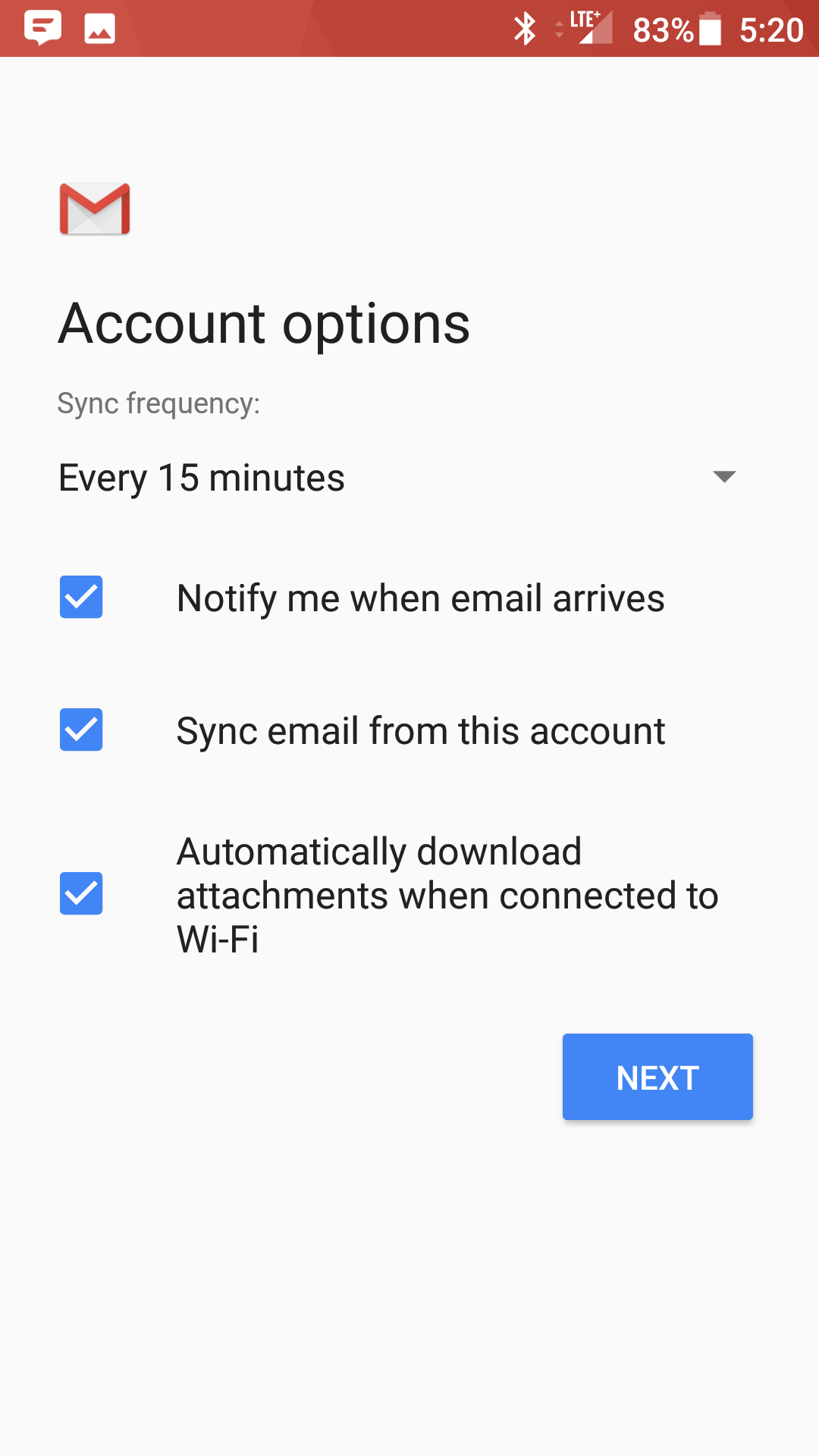
- Select the options desired, and tap Next
-
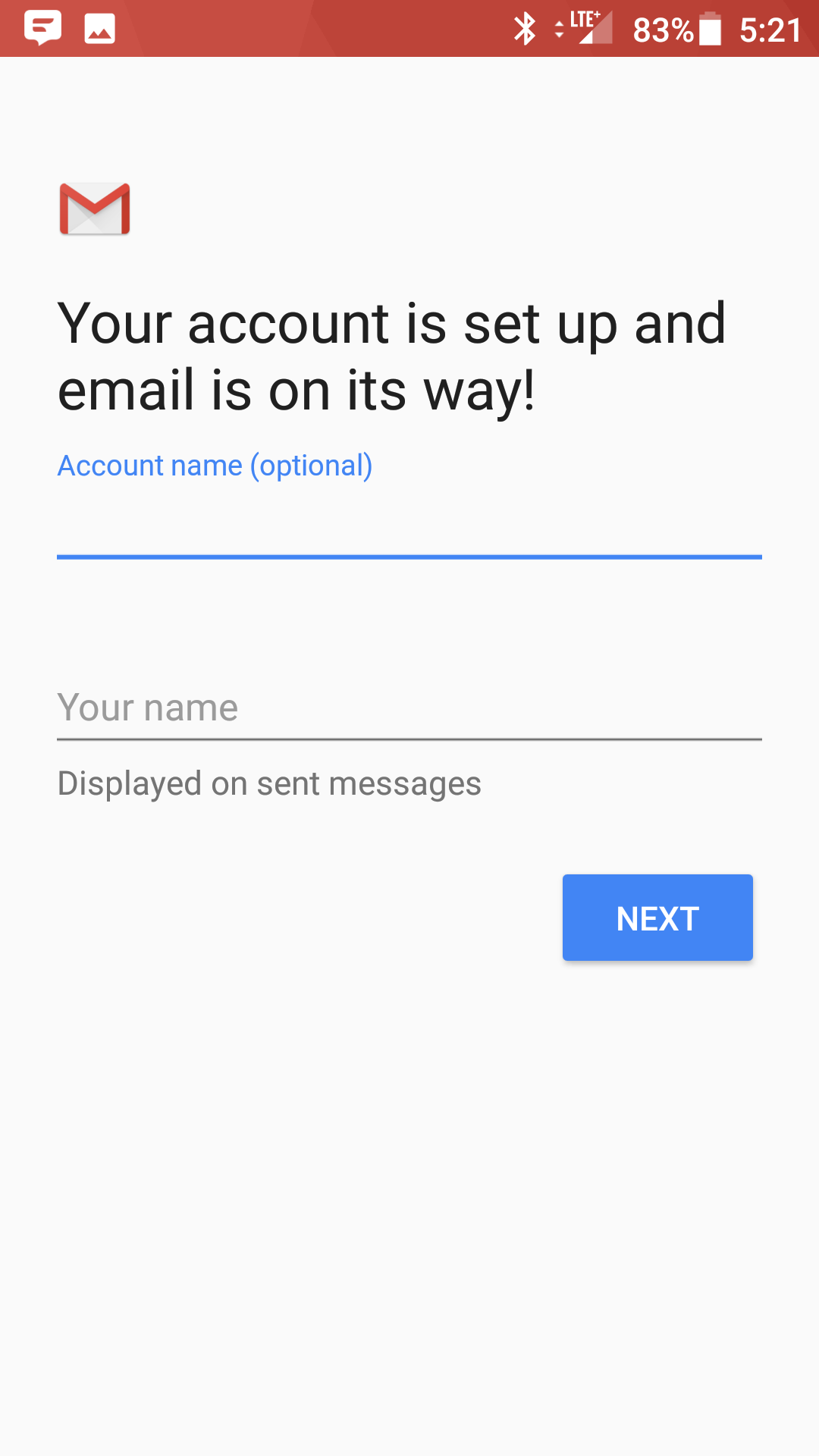
Account Name: Used to distinguish account from others in the device
Your name: Name to be displayed in outgoing messages
- Tap Next
- You are all set! Go back to the main menu, open the Gmail app and your messages should start syncing. Please give it a few minutes to download data before troubleshooting.
This means that your username or password are incorrect
- Make sure your user name is typed as shown above and that you did not make a typo (it happens!)
- Try accessing webmail via a web browser
If your browser has a saved password, remove it and manually enter it, to make sure you're using the same password you tried on your mobile device
- If you cannot access webmail, you will need to reach out to your email admin for a possible password reset.
- If you can access webmail, triple check you're typing the same password you used for webmail
- If issues persist, contact your email admin
- Make sure your user name is typed as shown above and that you did not make a typo (it happens!)
- Try accessing webmail via a web browser
If your browser has a saved password, remove it and manually enter it, to make sure you're using the same password you tried on your mobile device
- If you cannot access webmail, you will need to reach out to your email admin for a possible password reset.
- If you can access webmail, triple check you're typing the same password you used for webmail
- If issues persist, contact your email admin
This means that your username or password are incorrect
- Make sure your user name is typed as shown above and that you did not make a typo (it happens!)
- Try accessing webmail via a web browser
If your browser has a saved password, remove it and manually enter it, to make sure you're using the same password you tried on your mobile device
- If you cannot access webmail, you will need to reach out to your email admin for a possible password reset.
- If you can access webmail, triple check you're typing the same password you used for webmail
- If issues persist, contact your email admin
- Make sure your user name is typed as shown above and that you did not make a typo (it happens!)
- Try accessing webmail via a web browser
If your browser has a saved password, remove it and manually enter it, to make sure you're using the same password you tried on your mobile device
- If you cannot access webmail, you will need to reach out to your email admin for a possible password reset.
- If you can access webmail, triple check you're typing the same password you used for webmail
- If issues persist, contact your email admin