IOS: IPhone (IOS 14 and later - IMAP)
This article will assist you with setting up Outlook with your Hosted Mailbox.
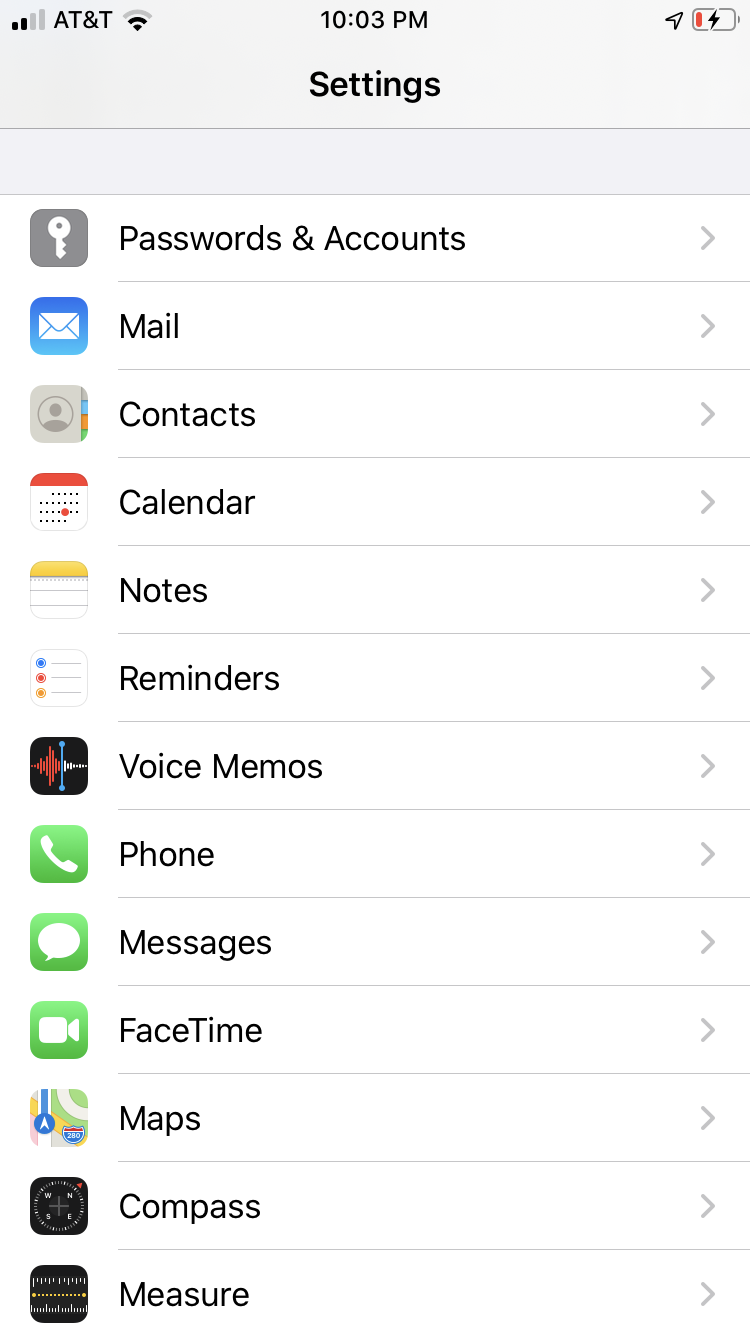
- On the home screen, tap the Settings icon.
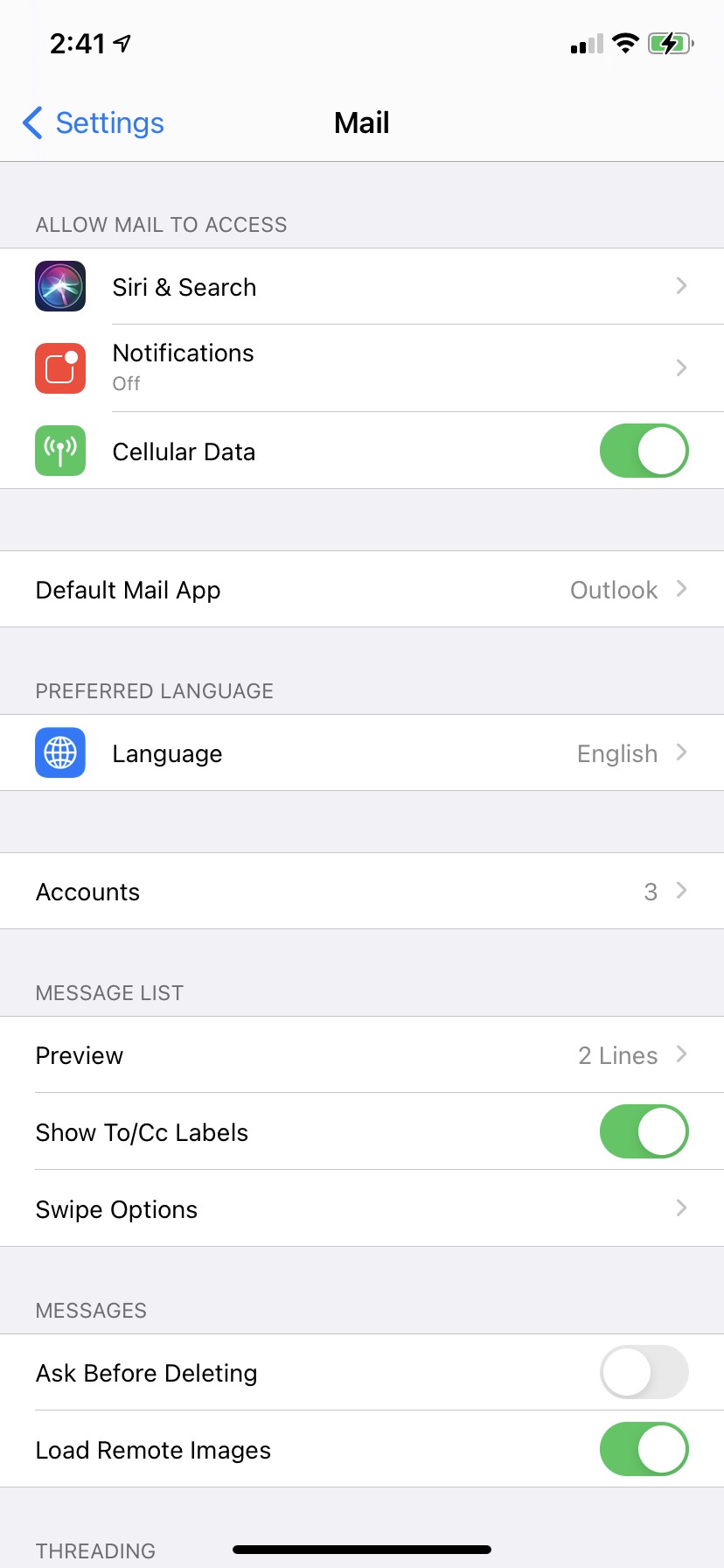
- Within Settings, scroll down and tap Mail
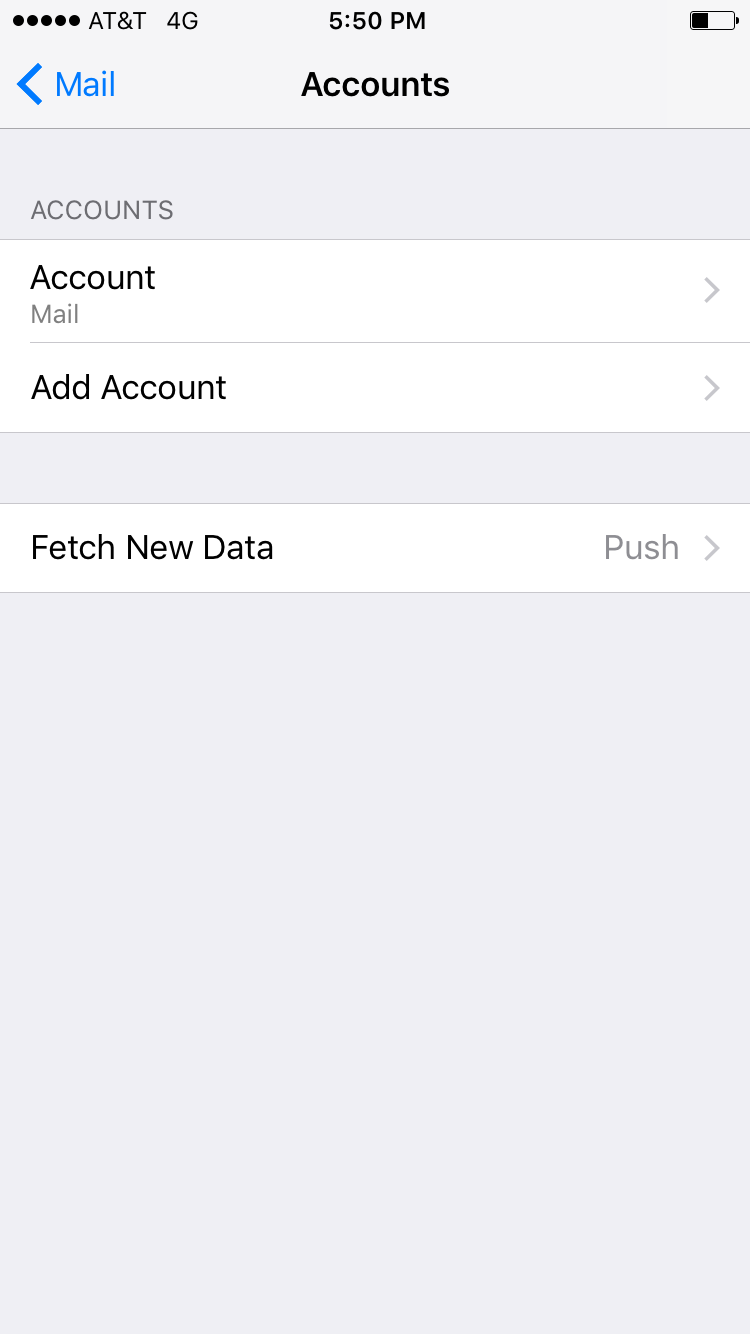
- Tap Accounts
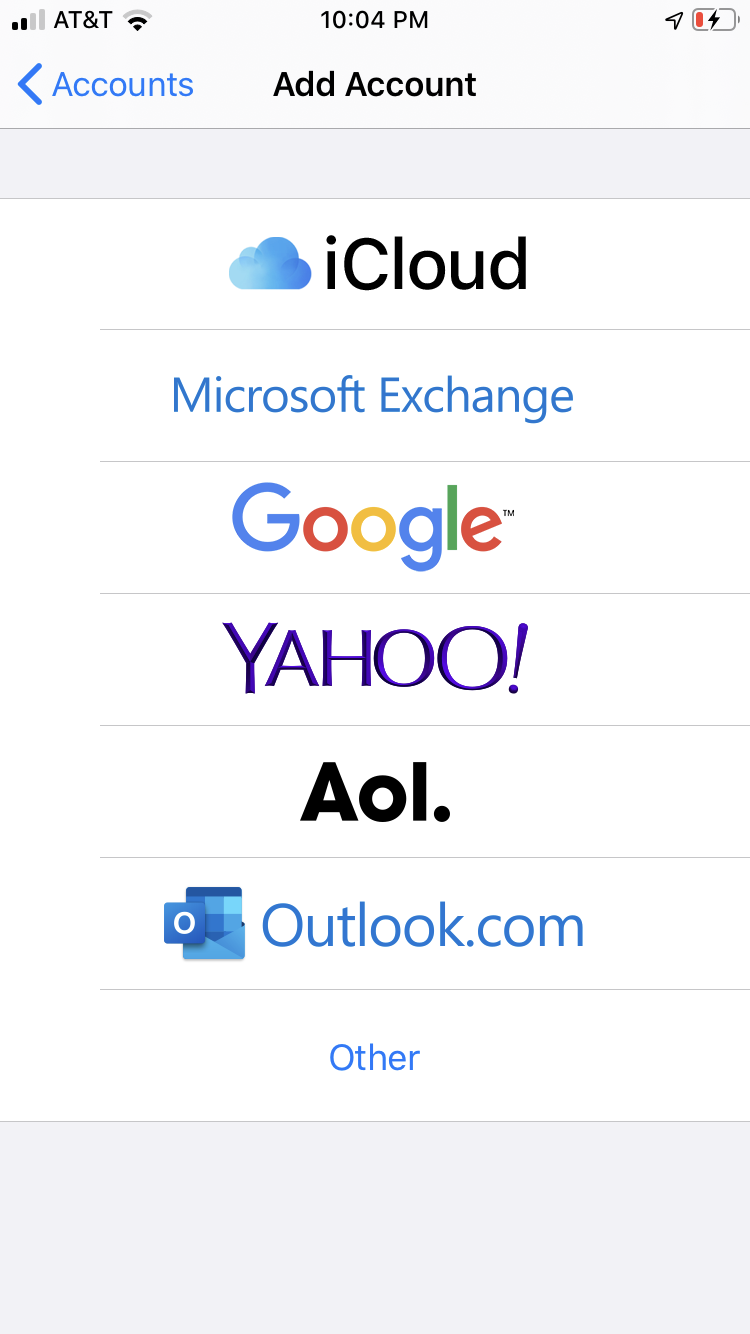
- Tap Add Account
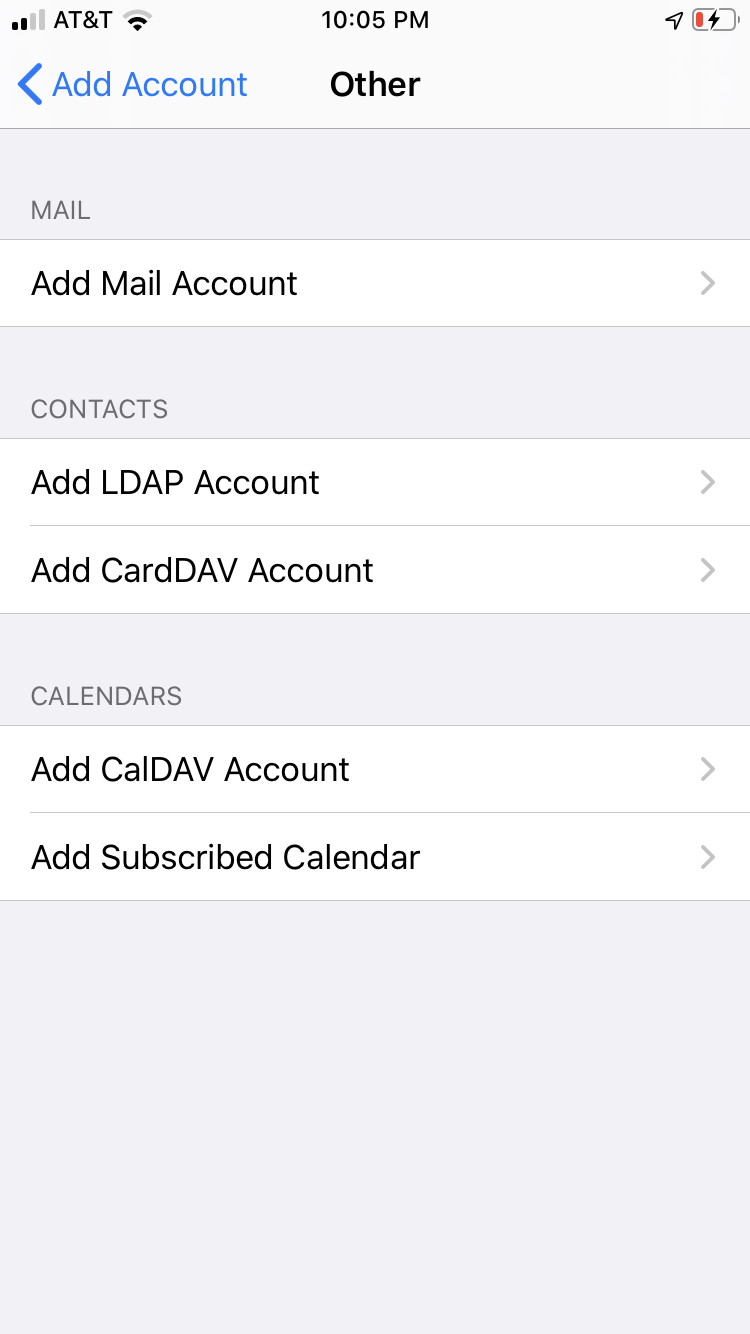
- Tap Other, at the bottom
- Tap Add Mail Account
-
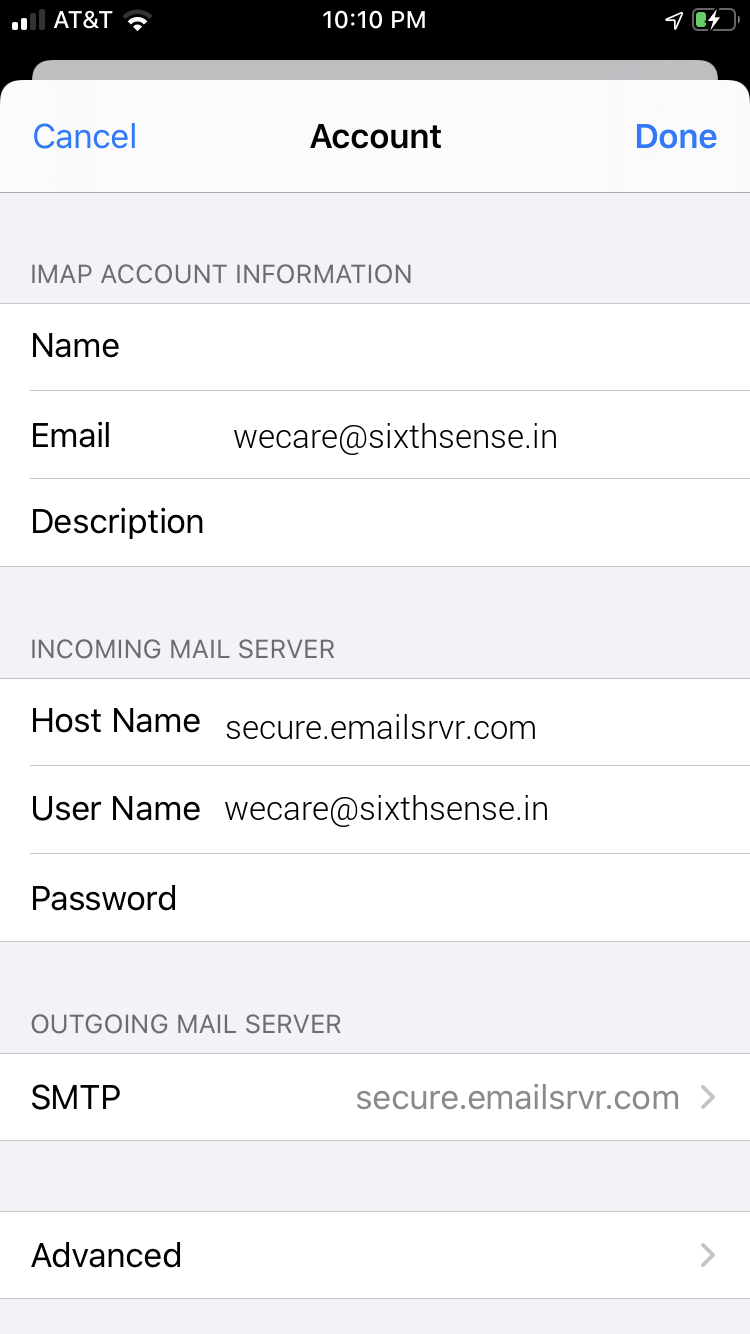
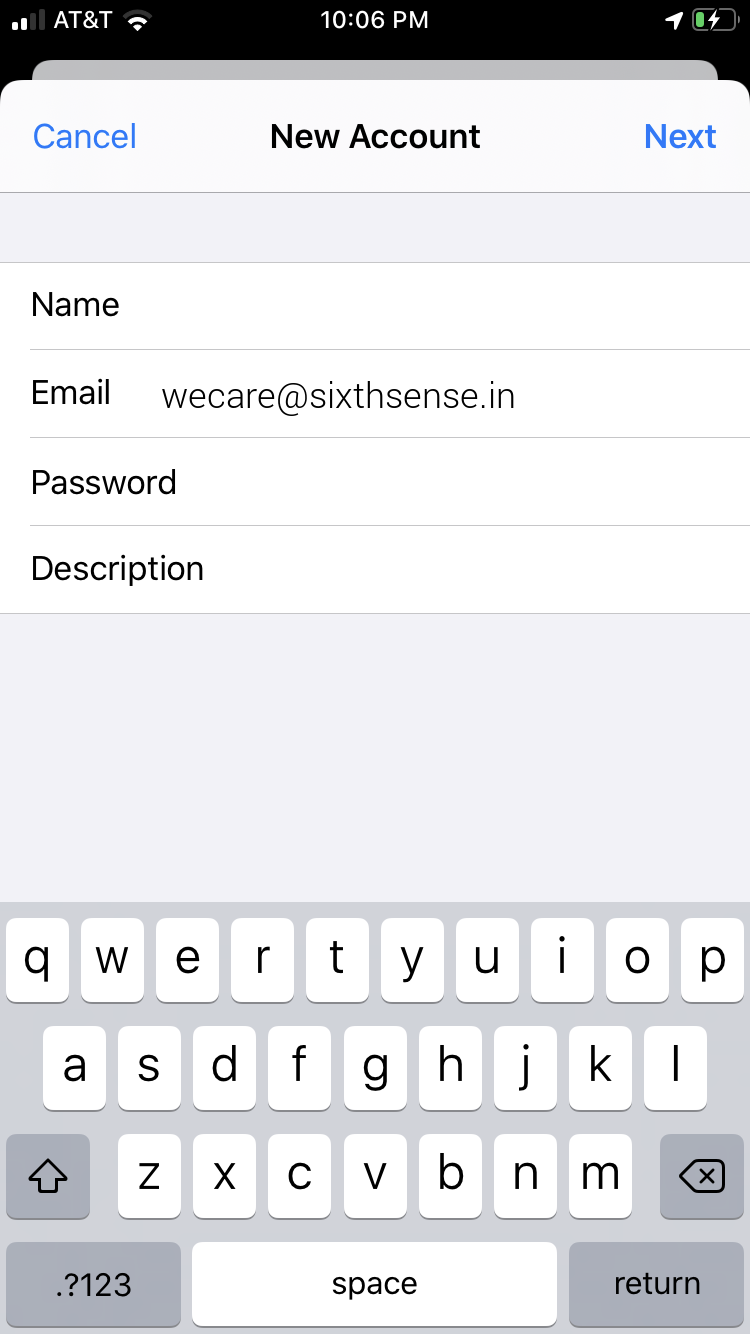
The next screen will ask for basic account information:
Name: Your first and last name
Email: wecare@sixthsense.in
Password: Your mailbox password
Description: Anything you'd like!
- Tap Next
-
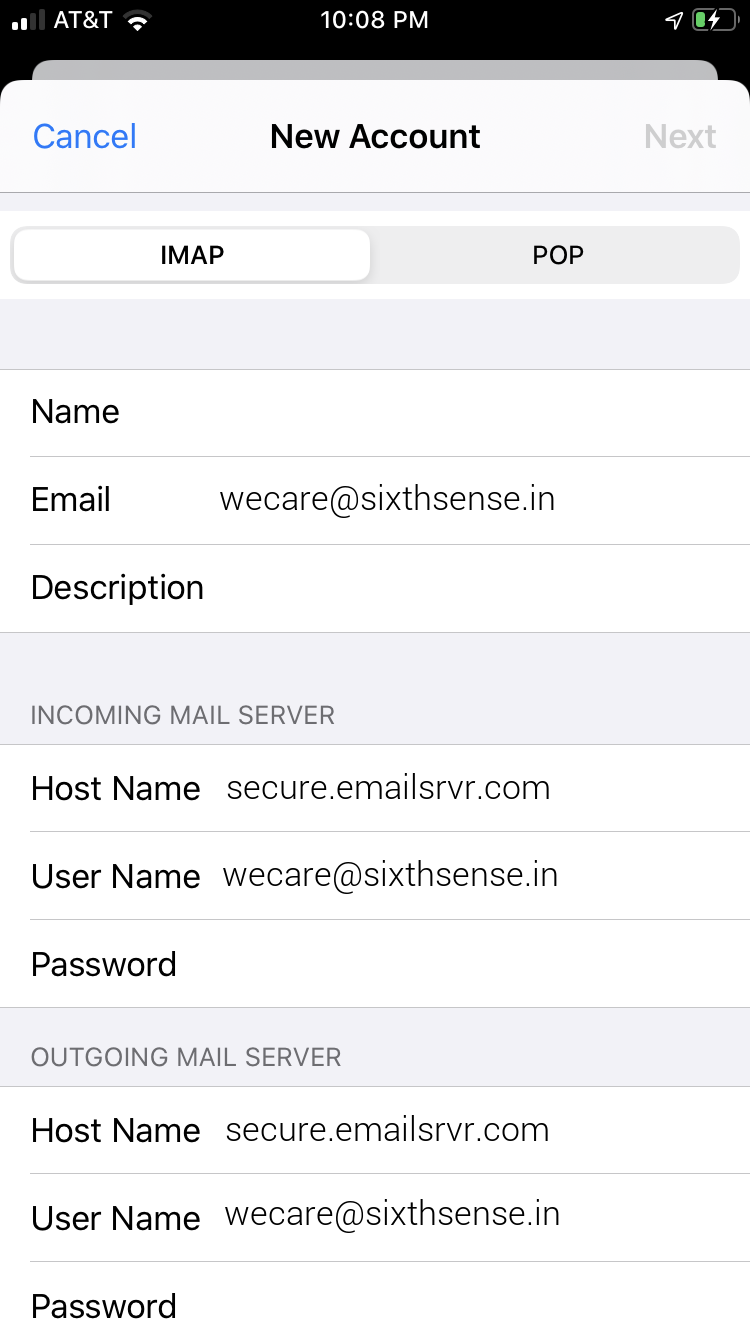
Make sure IMAP is selected
Enter the following server details:
Name: Your first and last name
Email: wecare@sixthsense.in
Description: Should already be prefilled from last section
Password: Your mailbox password
Incoming Server Settings
Host Name: secure.emailsrvr.com
User Name: wecare@sixthsense.in
Password: Your mailbox password
Outgoing Server Settings
Host Name: secure.emailsrvr.com
User Name: wecare@sixthsense.in
Password: Your mailbox password
- Tap Next
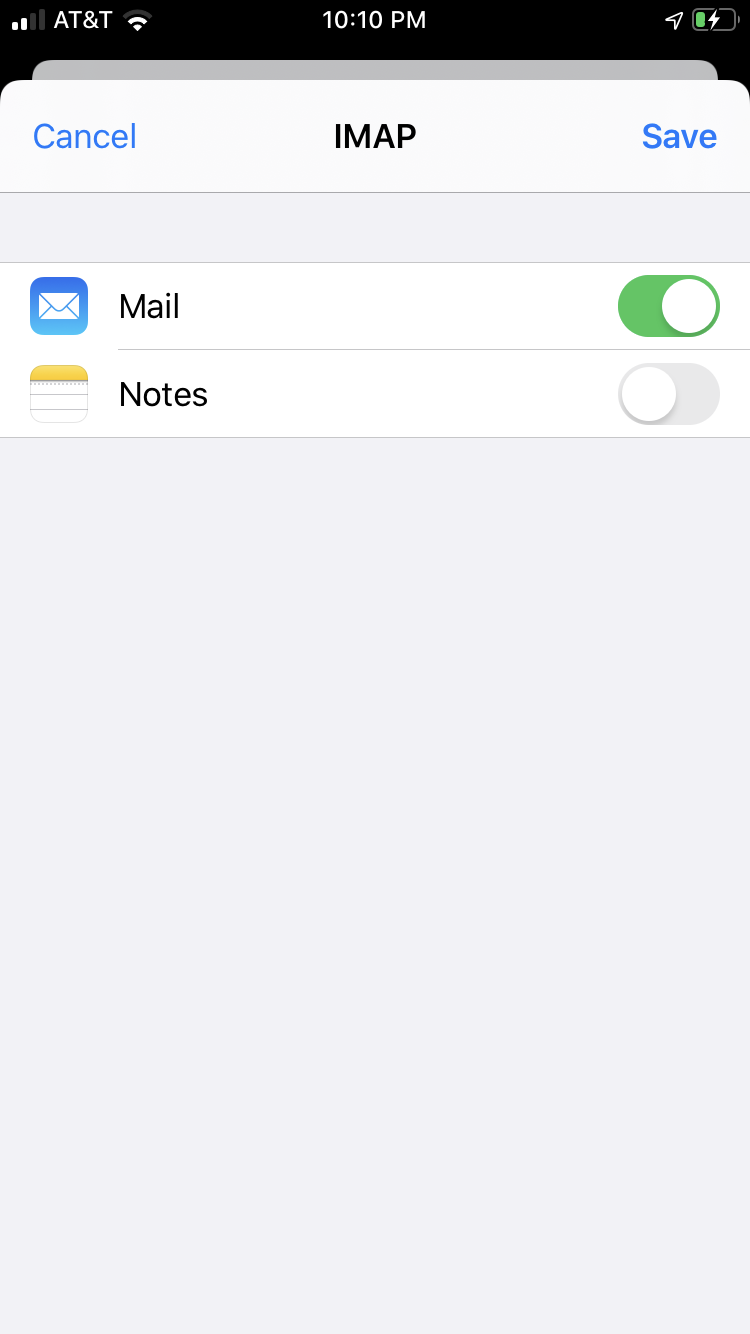
- Select the desired settings and tap Save
Note: Even though it says optional, they are NOT optional. If you skip these fields, you will NOT be able to send out email.
This means that your username or password are incorrect
- Make sure your user name is typed as shown above and that you did not make a typo (it happens!)
- Try accessing webmail via a web browser
If your browser has a saved password, remove it and manually enter it, to make sure you're using the same password you tried on your mobile device
- If you cannot access webmail, you will need to reach out to your email admin for a possible password reset.
- If you can access webmail, triple check you're typing the same password you used for webmail
- If issues persist, contact your email admin
- Make sure your user name is typed as shown above and that you did not make a typo (it happens!)
- Try accessing webmail via a web browser
If your browser has a saved password, remove it and manually enter it, to make sure you're using the same password you tried on your mobile device
- If you cannot access webmail, you will need to reach out to your email admin for a possible password reset.
- If you can access webmail, triple check you're typing the same password you used for webmail
- If issues persist, contact your email admin
Next, we are configuring your iPhone to sync your various IMAP folders and prevent duplicate folders from showing up. We call this Folder Mapping; below are the steps to do so.
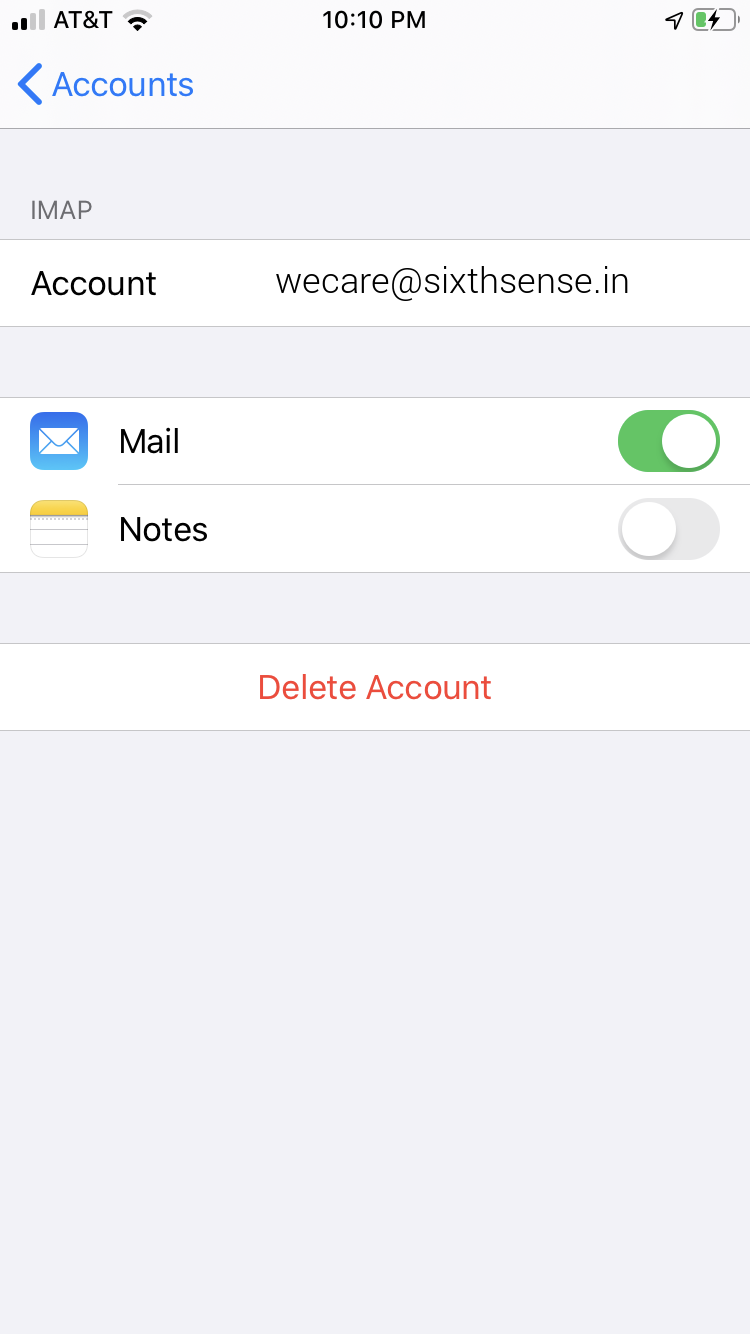
- Within the Mail settings window, select the account that you just added.
- Under IMAP, tap Account
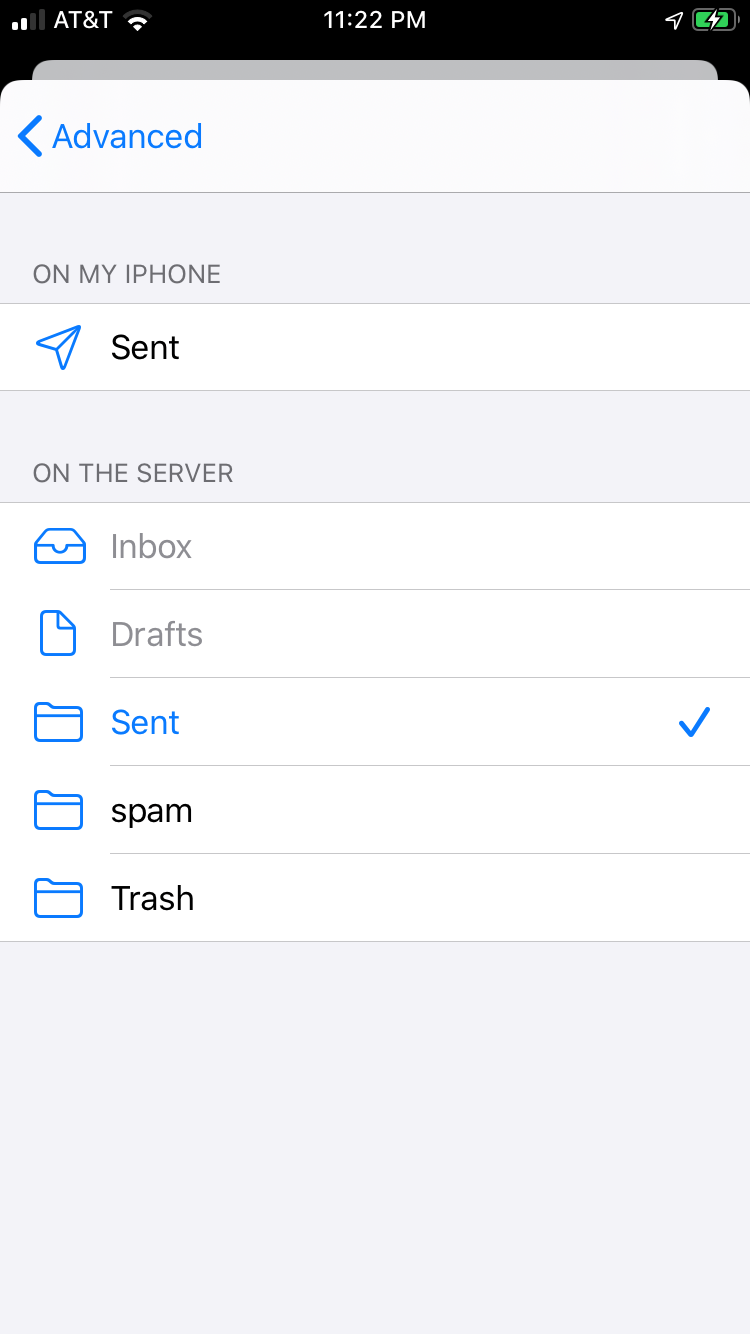
- Within the account settings, select Advanced at the bottom
- Under MAILBOX BEHAVIORS, select Sent Mailbox
- Select the appropriate folder under ON THE SERVER.
-
Now repeat the previous step for Deleted Mailbox.
Ignore the Archive Mailbox, it won't be used. - Last step! Make sure Deleted Mailbox is selected under MOVE DISCARDED MESSAGES INTO. This will ensure deleted messages go to the Deleted Mailbox folder.
-
Now you're done! Go back to the home screen and launch the Mail app. Your email should appear within a few minutes, depending on the amount of items to sync.
Note: If you have a large mailbox, it may take several minutes before email appears. Please wait at least 15 minutes before troubleshooting.